
For admins: Generate and manage your invite link
Generate a link
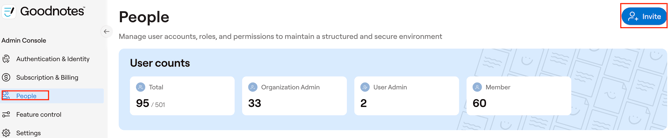
- In the Admin Console, go to People tab and tap + Invite
- Select the Via link tab.
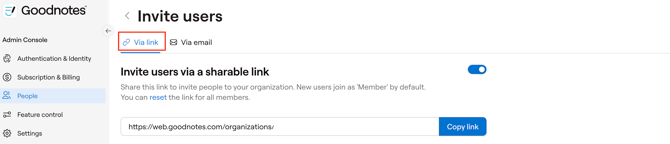
- Click Generate invite link.
- Copy the link and share it with your team.
Each invite link is unique to your organisation. When someone clicks the link, they are automatically added as a Member with no admin approval needed.
Manage your invite link
From the Via link tab you can:
- Copy — Copy the current link to your clipboard.
- Disable — Deactivate the link. Anyone clicking a disabled link will see an error and cannot join. You can re-enable it at any time.
- Reset — Generate a new link. The previous link stops working immediately. You will be asked to confirm before the reset takes effect.
Your organisation can have only one active invite link at a time.
For members: Join via an invite link
Please note: In order for the Invitation Link to work properly, users should have the app open in the background and then open the link in their email.
If you have previously owned a License Key or Goodnotes account and would like to switch to using the Goodnotes Teams, as a precaution we would encourage all users to make sure they have an appropriate backup in place for their data before completing the deployment. This can be achieved through iCloud Sync, Auto Backup or a Manual Backup.
New to Goodnotes
- Click the invite link.
- Create a Goodnotes account.
- Verify your email address.
- You will be added to the organisation as a Member and a seat will be assigned automatically.
Existing Goodnotes users
- Click the invite link.
- You will see the name of the organisation you are joining.
- If your account requires verification, enter the one-time code sent to your email.
- You will be added to the organisation as a Member.
Things to know
- Everyone who joins via an invite link is added as a Member. Invite links cannot be used to assign the Admin role. To change a member's role after they've joined, see How to change a user role.
- External members: If your organisation restricts membership to verified email domains, invite links respect that setting. Users with a non-approved domain will not be able to join.
Related articles
- How to: Change a User Role
- Set up different roles for your users
- How to: Switch Goodnotes Accounts Safely on Goodnotes Teams
- Adding Users to your Organization
Need help?
If you're a Goodnotes Teams customer and need assistance, contact our support team.