
Supported integrations and Availability
-
-
Google: Goodnotes Teams and Enterprise plans + Pro plan (individual)
-
OneDrive (personal): Goodnotes Teams and Enterprise plans + Pro plan (individual)
-
OneDrive (business): Goodnotes Teams and Enterprise plans only.
-
Dropbox: Goodnotes Teams and Enterprise plans only.
-
Box: Goodnotes Teams and Enterprise plans only.
Connect your cloud service
- Open Goodnotes app.
- Tap +New
- Tap +Import from Cloud Storage
- Under Cloud Storage, tap your cloud service
- Tap Connect
- Sign in to your account in the browser that opens.
- Once signed in, you'll be taken straight to your files.
Your account stays connected across sessions — you won't need to sign in again each time.
To disconnect: Tap the provider in the file picker and select Disconnect.
Only one account per provider can be connected at a time — adding a new one will replace the existing one. Exception: OneDrive supports one personal and one business account simultaneously.
Browse and open files
Once connected, tap your cloud storage to browse your folders.
- Open Goodnotes app.
- Tap +New
- Tap your cloud service
-
Tap a folder to open it. Use the breadcrumb trail at the top or the back button to navigate.
-
Tap a file to open it directly in Goodnotes for annotation.
Platforms: iOS, Android, Windows, and Web.
Supported file types: PDF, JPEG, PNG, TIFF, and .goodnotes
Save your file back to your cloud storage (iOS only)
When you open a file from your cloud storage, Goodnotes remembers where it came from. After annotating, you can save it back to your cloud storage with one tap — no manual uploading needed.
⚠️ Save back is only available on iOS. On Android and Windows, use the export menu to save your file locally, then re-upload it to your cloud storage manually.
- Open a file from your cloud storage.
- After annotating, tap the export menu.
- Select Save changes to your cloud storage.
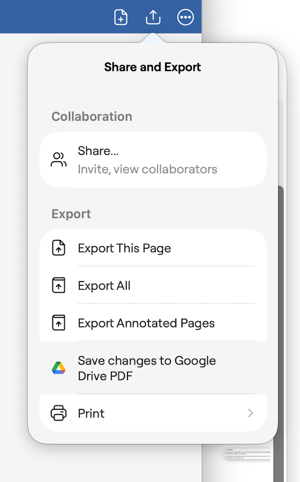
- Choose your destination folder. Goodnotes defaults to the folder the file came from.
- Tap Save here.
If a file with the same name already exists:
- Replace — overwrites the existing file.
- Save a copy — saves a new file with a suffix (e.g.
filename (1).pdf). - Cancel — returns you to the folder picker.
Troubleshooting
I don't see Box or Dropbox in the file picker.
Box and Dropbox are only available on Goodnotes Teams and Enterprise plans. If your subscription has expired, these options will be hidden. Re-subscribing will restore your connection automatically.
I'm being asked to reconnect.
Your session may have expired. Tap Reconnect and sign in again.
The folder won't load.
Check your internet connection and pull down to refresh. If the issue continues, try disconnecting and reconnecting your account.
Need help?
If you have any questions before or after making the change, please reach out to our team.