
If your documents aren't syncing between devices on Goodnotes Teams, this is usually because your account hasn't migrated to Goodnotes Cloud yet — it may still be using iCloud sync, or no cloud sync at all. Goodnotes Cloud is required for documents to sync across devices on Goodnotes Teams
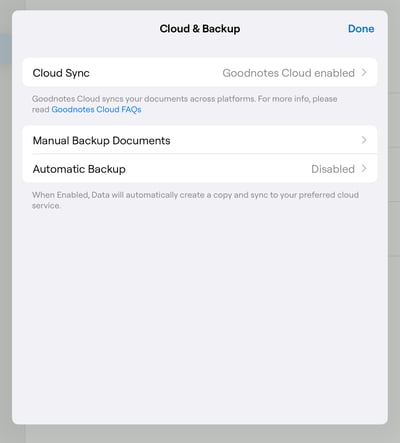
Review the two scenarios below and follow whichever one applies to you to check whether migrating to Goodnotes Cloud is still possible at this point.
Scenario 1: You previously used iCloud to sync notes before switching to Goodnotes Teams
- Make sure you complete a manual backup of your data before migrating.
- Go to Device Settings > Your Name > iCloud > See All, and make sure iCloud for Goodnotes is toggled ON. If it's already ON, toggle it OFF and back ON to refresh it.
- In the Goodnotes app, open the Goodnotes menu (top-right corner of the library view) > Cloud and Backup > Cloud Sync. Toggle the iCloud sync option OFF and ON to trigger a re-sync.
- Once the iCloud sync process finishes, you should see a prompt asking you to switch to Goodnotes Cloud. If you don't, try relaunching the app and waiting for the prompt to appear in the library view.
- When the prompt appears, select Copy Goodnotes documents from iCloud. This copies your existing iCloud notebooks into Goodnotes Cloud, where they'll be stored going forward.
If you run into difficulty during the transfer:
- Use your manual backup as a source to restore your documents.
- If the prompt to switch to Goodnotes Cloud doesn't appear even after iCloud sync has finished, toggle OFF iCloud sync for Goodnotes in Device Settings > Your Name > iCloud > See All > Goodnotes, then relaunch the app to trigger the prompt.
Scenario 2: You never used iCloud sync for Goodnotes
- Make sure you complete a manual backup of your data before migrating.
- Open the Goodnotes menu (top-right corner of the library view) > Cloud and Backup > Cloud Sync, and make sure the Goodnotes Cloud option is toggled ON.
- If you see the iCloud option here instead of Goodnotes Cloud, toggle it OFF. Then toggle OFF iCloud sync for Goodnotes in Device Settings > Your Name > iCloud > See All > Goodnotes, and relaunch the Goodnotes app. This should trigger the Goodnotes Cloud migration prompt.
- When the prompt appears, select Copy Goodnotes documents from iCloud to start the migration.
- Double-check by going back to Goodnotes menu > Cloud and Backup > Cloud Sync. You should now see the Goodnotes Cloud option toggled ON.
- Create a test document and confirm it syncs to Goodnotes Cloud successfully.
Still not syncing?
If you've followed the steps above and your documents still aren't syncing across devices, contact our support team and let us know which steps you've already tried.
For more background on how Goodnotes Cloud works, see FAQs: Goodnotes Cloud.