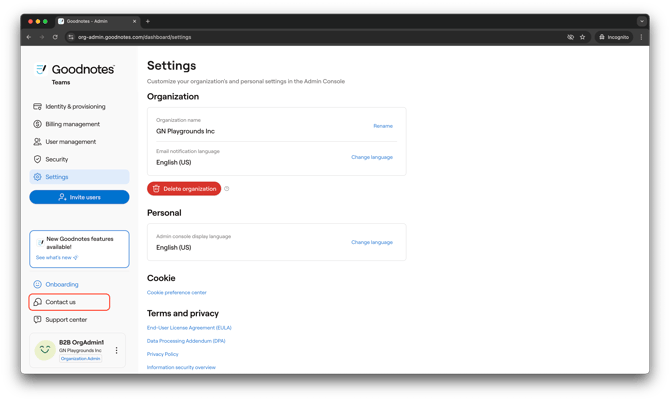
When using the Goodnotes Admin Console or the Goodnotes application itself. There may be occasions where you encounter issues with your deployment or encounter technical difficulties with the application. In these situations, it’s important to know who to contact and how best to get help.
Note: This article only applies to Business plan users (Goodnotes for Teams and Goodnotes Enterprise). If you're on an individual plan (Pro or Essential), please contact our support team here.
Best Practices
When contacting us, it is recommended to be as descriptive as possible to avoid any confusion or time-consuming back-and-forth. If possible, please include the following in your contact:
- Detailed description of your issue
- Any steps you can take to reproduce the issue
- Your iOS version (you can check this here)
- Your app version (You can check this by going to the Gear Menu > About)
- iOS and app version of the student is applicable to your issue
- Screenshot or recording of your issue
- Which troubleshooting steps from our guides you have already tried
- Diagnostics Data from several effected devices. You can get this from the Library view by
- Open Goodnotes> Open Goodnotes menu (top-right corner of the library view) > Tap About > Export Diagnostic Data.
- Open Goodnotes app> Tap the icon on the top right> View account> Account Settings> Export The Diagnostic Data
-
If still on the login page, look for the "?" icon in the top-right corner > Download diagnostics file to device.
- Diagnostic data from the Admin Console:
-
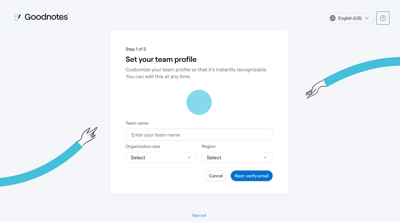
- If you're not signed in yet (e.g. on the sign-up page): click the question mark (?) icon in the top-right corner, then copy and send us the information shown there.
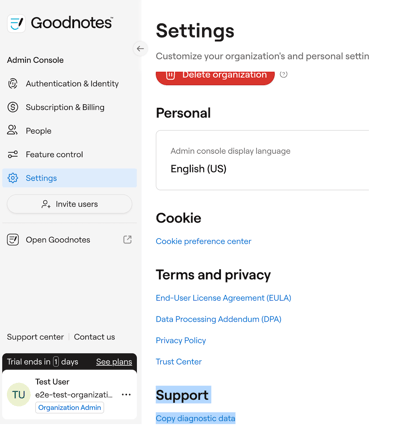
- If you're signed in to the dashboard: go to Settings, scroll to the bottom, and click Copy diagnostic data.
- If you're not signed in yet (e.g. on the sign-up page): click the question mark (?) icon in the top-right corner, then copy and send us the information shown there.
-
If you require assistance with billing or payments, please reach out to our sales team.
Technical Support
Please reach out for any in-app issues related to usability, backups & syncing, bugs, functionality or feature requests.
How to report an issue in the Goodnotes app (iOS and MacOS users only)
-
Open Goodnotes
-
Tap your profile icon in the top-right corner
-
Tap Report an issue
Checking the Send your diagnostic data checkbox will automatically send diagnostic data to our Customer Support team. This helps us identify and resolve the issue faster, so we highly recommend enabling it.
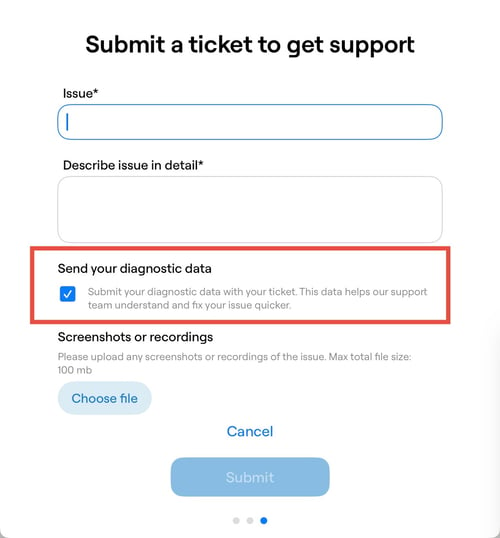
Submitting a Support Form
You can contact our customer support team here, or you can use the Help & Support button within the Admin Console to raise a ticket.