
This article will show you how to add new users if you are managing your Organization using the Goodnotes Admin Console. If you are not yet using the Admin Console and want to learn more, see this article!
Why do I need to add users?
Seats in your Organization are assigned directly to specific users. Unlike our previous License Key system—where any device targeted by your MDM would automatically use a seat—you now have full control over who in your Organization gets access to Goodnotes. This allows you to manage the number of seats you need more effectively and adjust your subscription up or down as required.
How to Add a User
In order to invite your users, you will need to send out an invitation link for them to join the organisation.
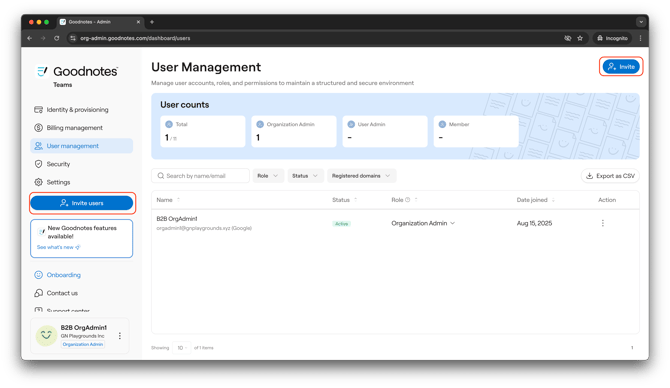
- Head to the Goodnotes Admin Console and navigate to the People tab in the sidebar
- Click on Invite Users in the sidebar or the top right corner. This will take you to a page where you can input a new user's email address
- Input as many email addresses as you need, either one by one or as Batch Import. Then choose which Role you would like to set for these new users. You can read about the different Roles here.
- Click Send Invitation
Please note: In order for the Invitation Link to work properly, users should have the app open in the background and then open the link in their email.
What next?
From here, users will receive an email invitation from your organization and will need to login with their appropriate account in order to be capture by your organization.
See the following articles for further assistance in joining an organization as a user: